Overview
Checkout upsells appear as optional one-click order bumps inside the checkout form (including the mobile checkout sheet). Buyers can add up to three related products in the same payment, which increases average order value.
Before you start
- At least two published products.
Step 1
Open product Growth step
Upsells are configured on the product being purchased, not on the upsell target alone.
Step 2
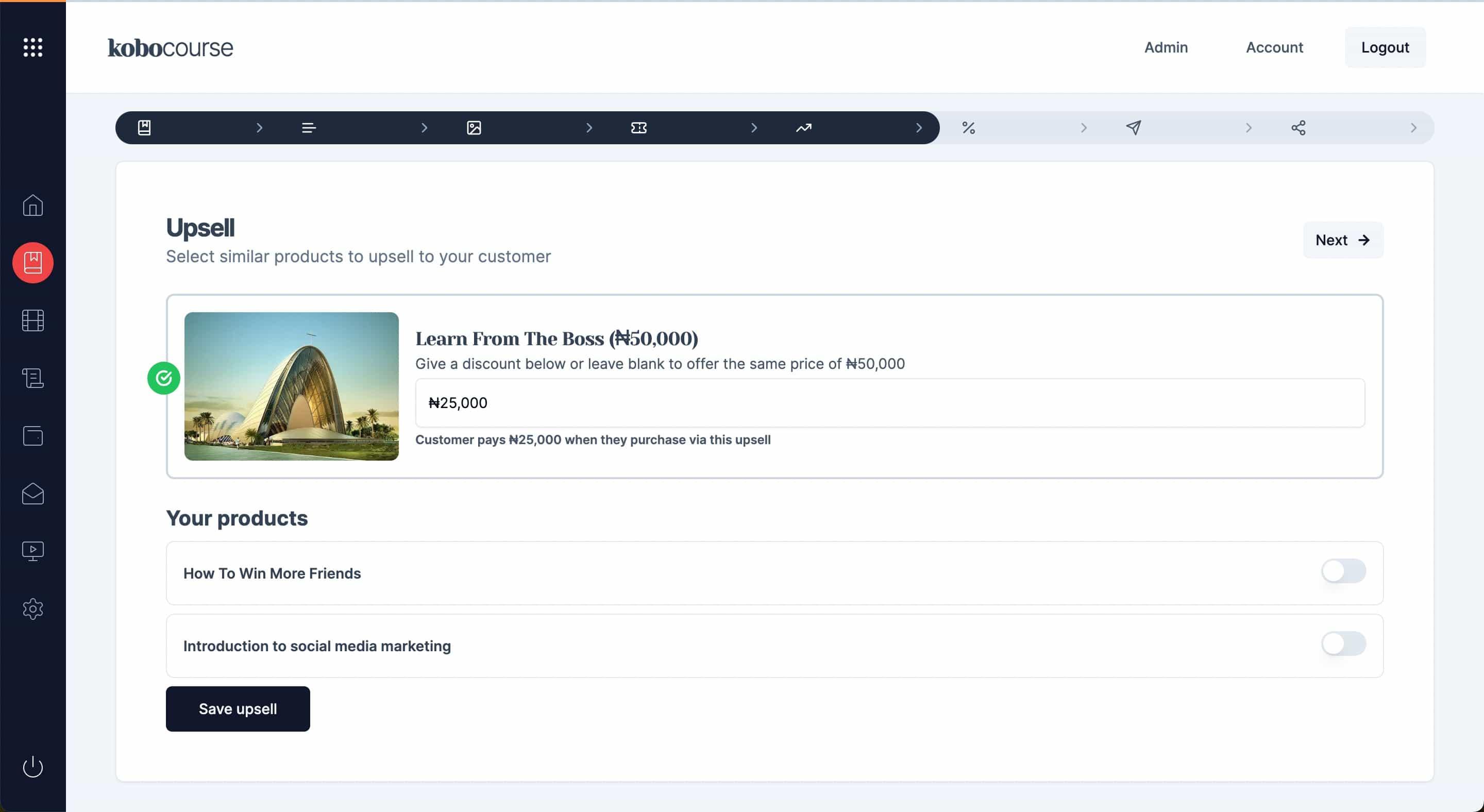
Select upsell products
Choose complementary offers — e.g. templates after a course, or a workbook after a workshop ticket. Drag to control the order bumps appear in.
Step 3
Write bump copy and discount
Use a short headline and pitch so the bump feels like a one-time offer. Add an optional fixed discount to show a strikethrough price and boost take rate.
The preview on the Growth step matches what buyers see at checkout.
Step 4
Test checkout flow
Open your product page, start checkout, and toggle each bump. Confirm line items and totals update, then complete a test purchase to verify delivery for every product in the order.
Tips & troubleshooting
- Upsells should feel like a natural next step, not unrelated spam.
- You need at least one other published product before upsells can be configured.
- Keep bump copy short — one headline and a sentence or two is enough.
FAQ