Overview
Kobocourse lets you organize video, PDF, and audio lessons into modules, sell on a branded sales page, and deliver content with quizzes and completion certificates. This guide follows the product wizard from your dashboard.
Before you start
- A Kobocourse creator account (sign up free, then enable creator mode).
- Course videos or files ready to upload (or use the media library).
- Bank and identity verification if you plan to withdraw earnings.
Step 1
Create your creator account
Register at kobocourse.com/signup, confirm your email, then open Account settings and complete your creator profile.
Your username becomes your public storefront URL: kobocourse.com/your-username.
Step 2
Start a new course product
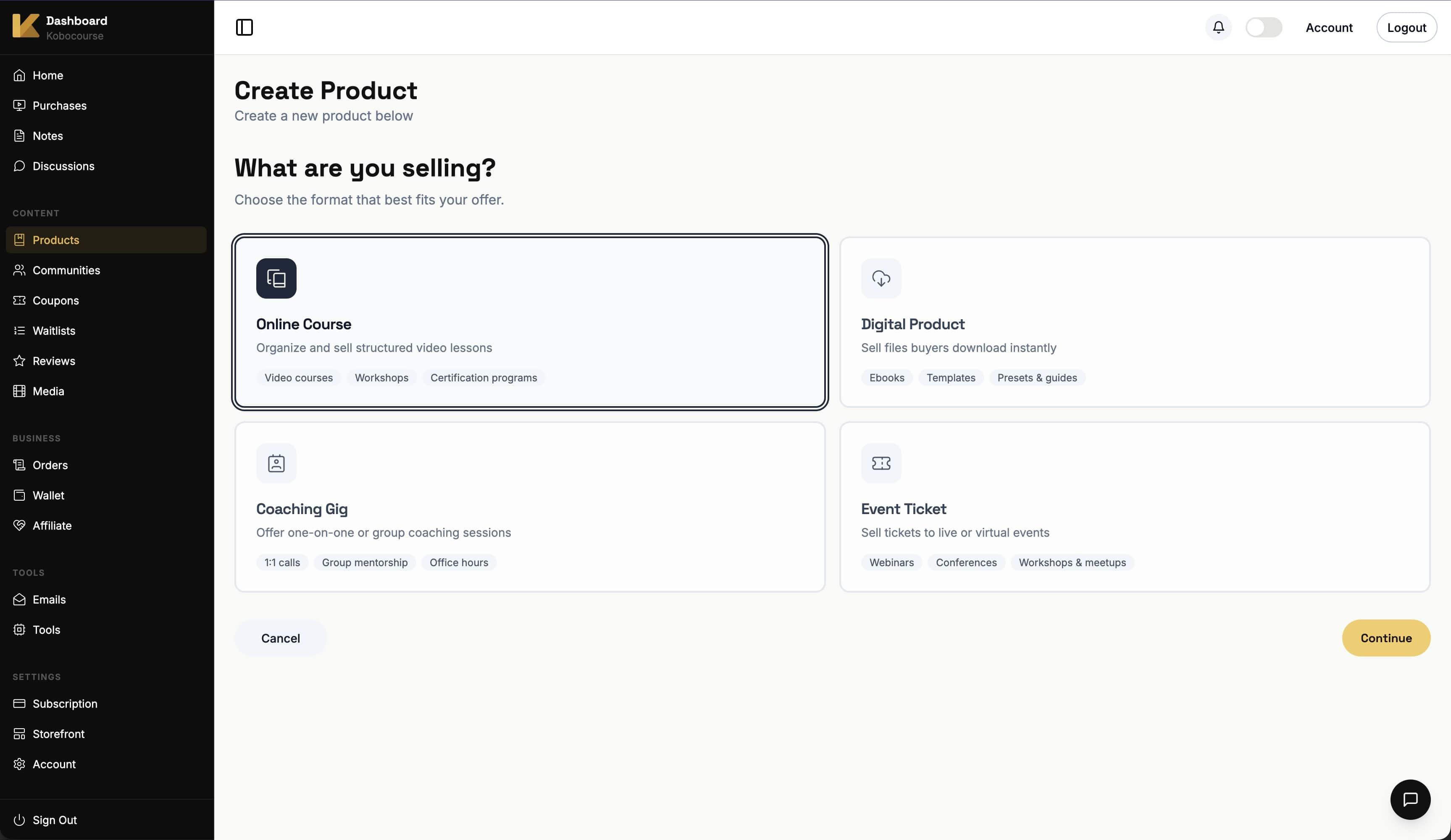
From the dashboard, go to Products and click Add Product. Select Online Course and continue.
Step 3
Enter product basics
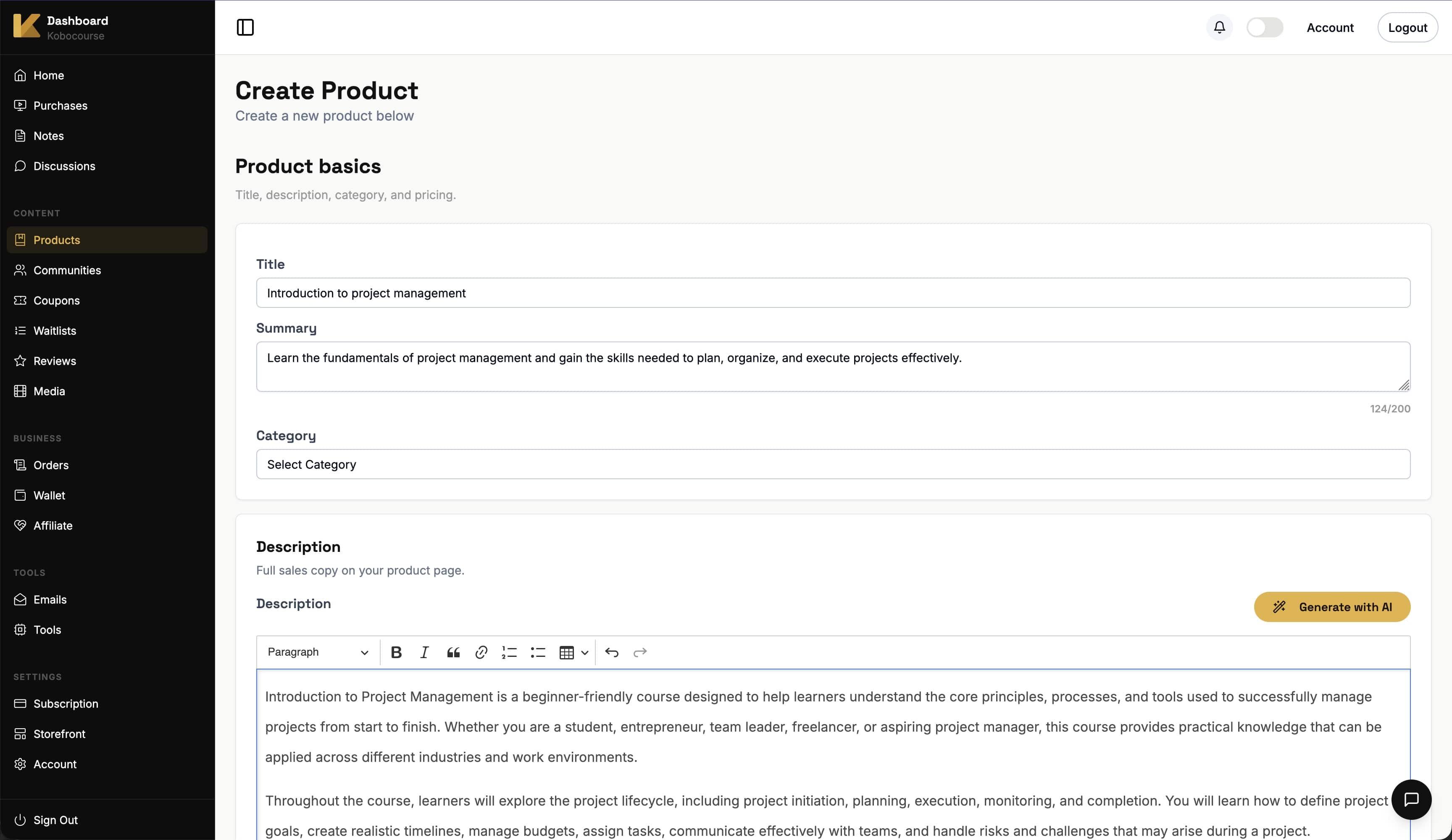
Add a clear title and a short summary (used for SEO). Write a full description or use AI assist if available.
Choose your category, currency, and price. You can offer free courses by setting the price to zero.
Step 4
Build your sales page
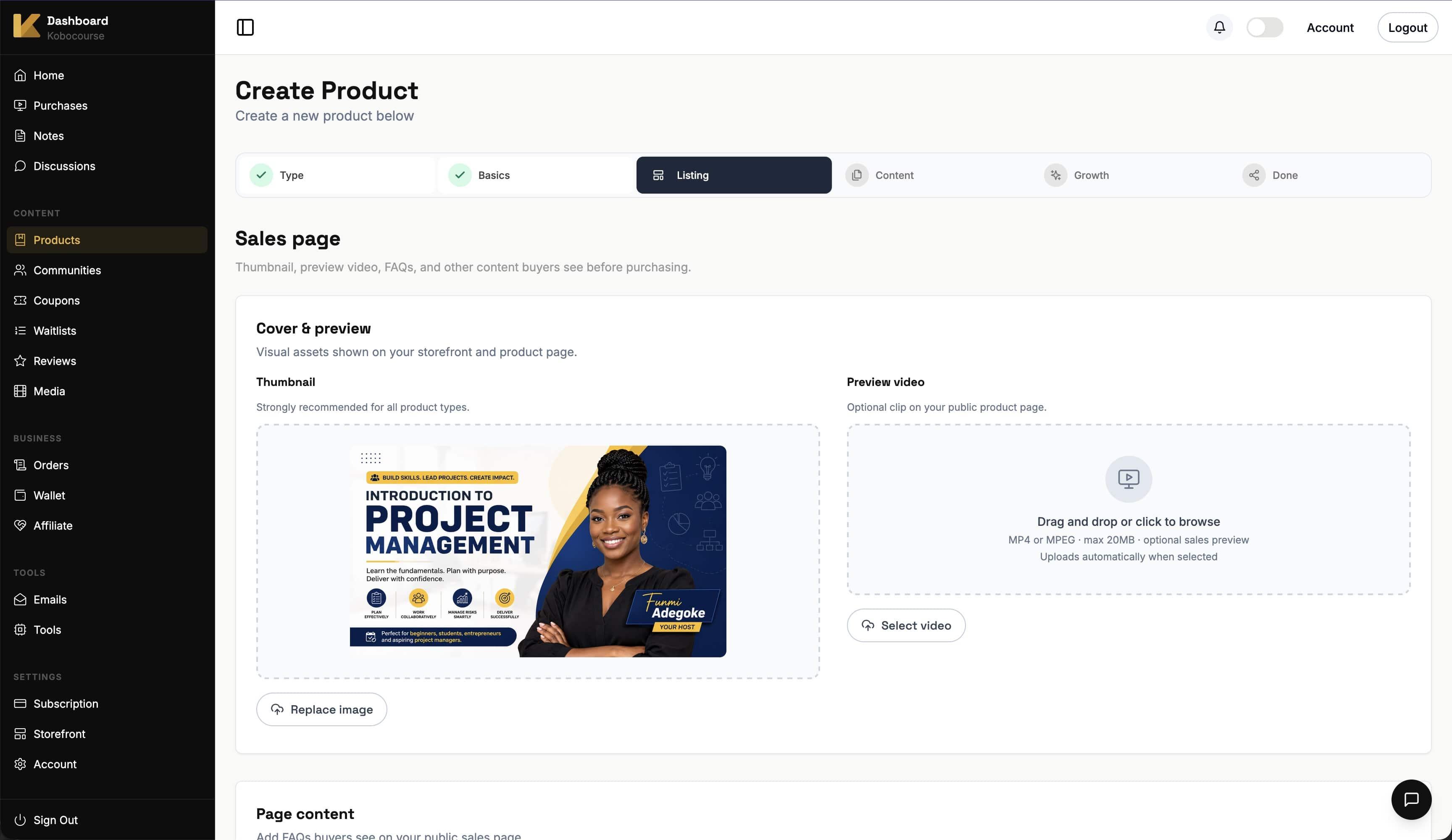
Your thumbnail appears in your storefront and catalog. A preview video helps buyers understand the course before purchase.
Add FAQs on the sales page step to answer common objections before checkout.
Step 5
Add modules and lessons
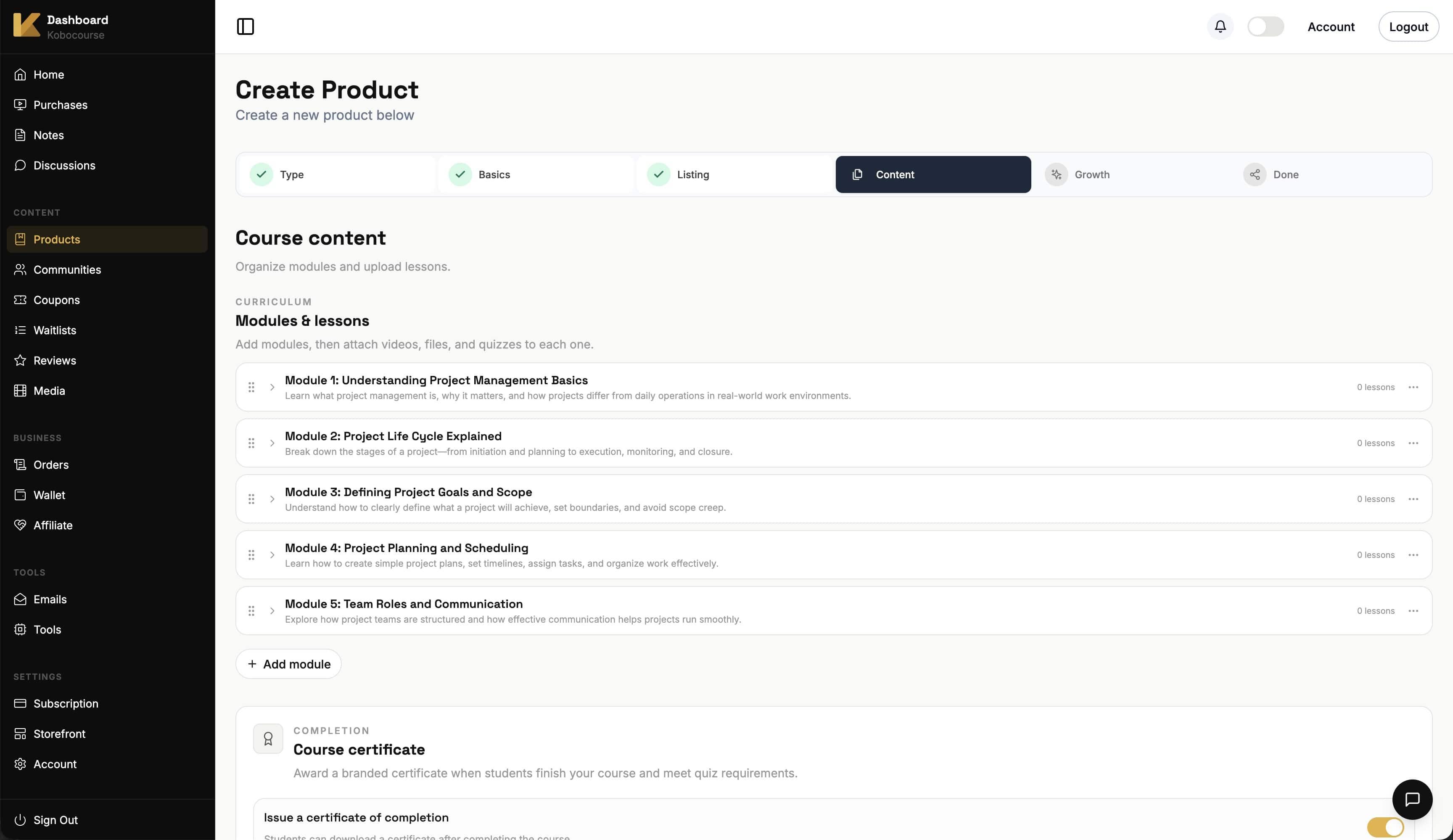
Click Add Course Module for each section of your curriculum. Drag module handles to reorder.
Inside each module, add lessons and upload files from your device or media library.
Step 6
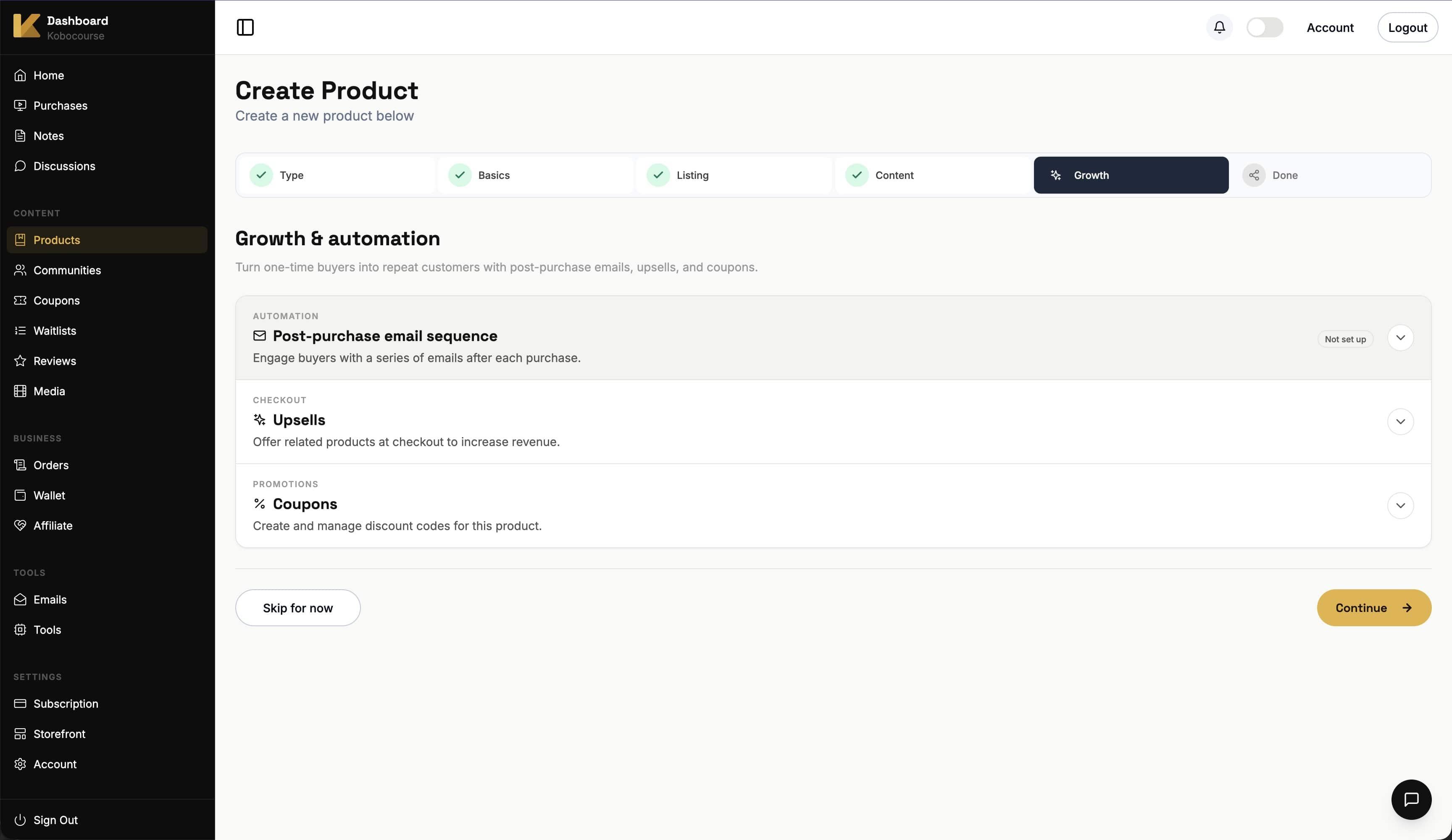
Configure growth tools
On the Growth step, add up to three related products as checkout upsells, attach coupon codes, and build an automated email sequence for new buyers.
Step 7
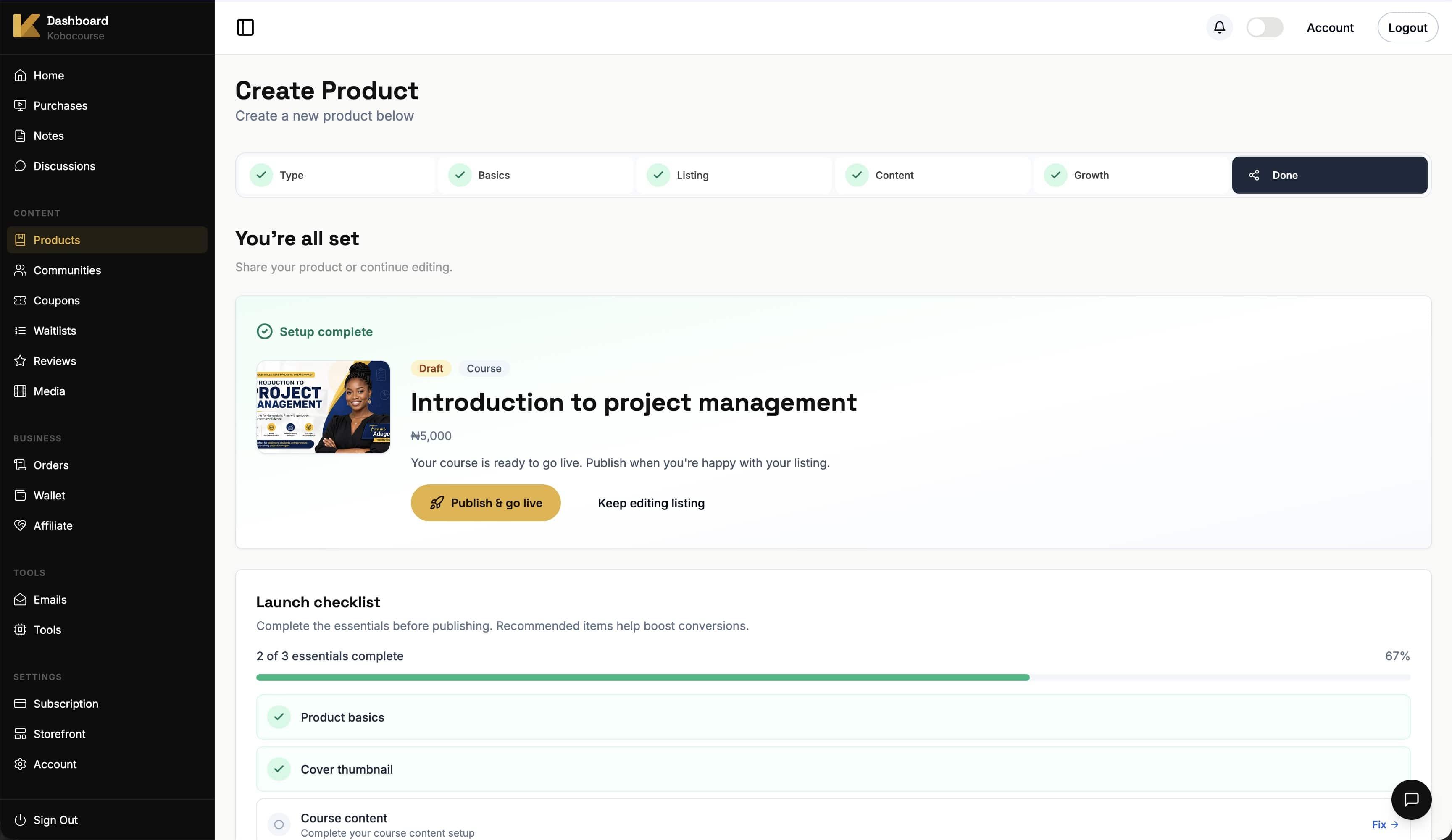
Publish and share
On the final step, publish your product so it appears on your storefront. Copy the product link or download the QR code for social promotion.
Run a test purchase (or use a 100% coupon) to confirm checkout and lesson access work end to end.
Quizzes and certificates
While editing course content, configure a pass score and certificate template. Students who meet the requirement receive a branded certificate automatically.
Create standalone quizzes from Products → Quizzes, or link quizzes to your course from the course detail page.
- Certificate settings live in the course content (files) step.
- Manage quizzes at /dashboard/products/quizes after your course exists.
Free invites and student progress
From your course detail page, invite students for free access without a checkout. Track completion and activity from the student progress tab.
Tips & troubleshooting
- If buyers cannot access lessons, confirm the product is published and payment completed.
- Use a short, keyword-rich summary on the basics step — it powers search snippets for your product page.
- Modules vs single-style: choose module layout for multi-chapter courses; single style works for one-off workshops.
FAQ